
GSC Tutorial for 2026: Setup, Tracking, Dashboard, SEO Hacks
Introduction: What Is GSC and Why Do You Need It?
Google Search Console (GSC) is a free tool by Google that helps you track your website’s performance in search. Think of it like a health check dashboard for your website — it shows what keywords you rank for, how many impressions you’re getting, your clicks, indexing issues, 404 errors, and more.
This GSC tutorial explains everything in a truly beginner-friendly way. Whether you’re an SEO beginner or someone starting a new website, you’ll learn every step in a simple, clean, and practical format. Many beginners feel confused about how to use Google Search Console, how to set it up, how to track keywords, and how to fix errors — so this GSC tutorial solves all of that in one place.
Let’s start from the beginning.
Setting Up Your Account — The Complete GSC Setup Tutorial (Step-by-Step)
If you’ve ever wondered how Google sees your website, this GSC tutorial will finally make everything clear This section of the GSC setup tutorial explains how to sign up and create your account.
Step 1: Sign in
Go to search.google.com/search-console
Click Start Now
Sign in using your Gmail.
Step 2: Add Your Property
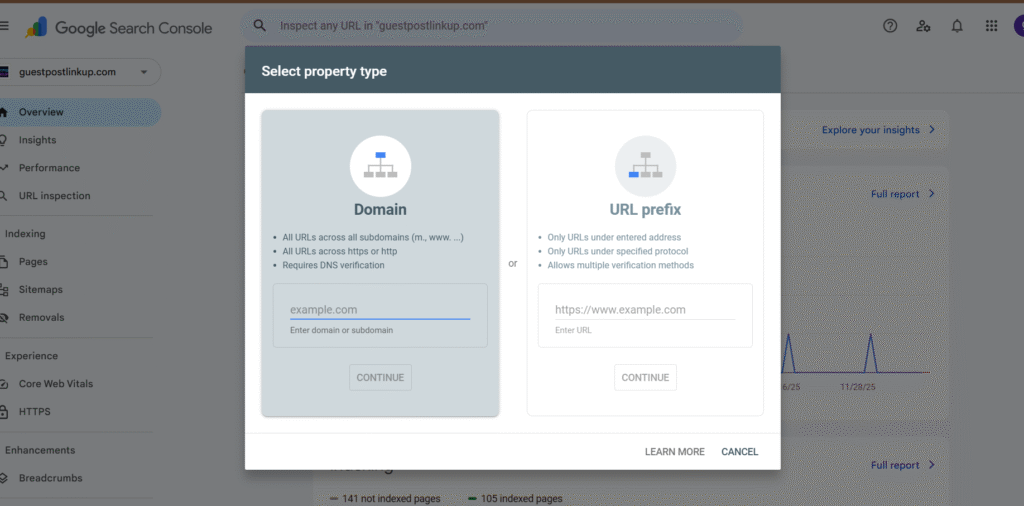
Google gives you two options:
- Domain Property
- URL Prefix Property
Let’s break them down with examples so it’s simple.
Option A: Domain Property (Recommended)
If your website is:
www.mysite.com
A Domain property includes:
- http
- https
- www
- non-www
- all pages
- all subdomains
Example:
If your site has both mysite.com and blog.mysite.com, Domain covers everything.
Steps to Add Domain Property
- Choose Domain
- Google gives you a DNS TXT record
- Go to your domain provider (GoDaddy, Hostinger, etc.)
- Paste the TXT record
- Click Verify
Yes, DNS verification sometimes takes a few hours — this is normal.
Option B: URL Prefix Property (Faster, Page-Specific)
If your main site runs only on https://mysite.com, you can add ONLY that version.
Steps to Add URL Prefix
You can verify using:
- HTML file upload
- HTML meta tag
- Google Analytics
- Google Tag Manager
This GSC setup tutorial gives you the step-by-step process to activate Search Console and prepare your site for indexing and ranking.
Example:
If you upload Google’s HTML file into your public_html folder, click Verify — done. This part of the GSC setup tutorial is often the quickest option for beginners.
Submitting Your Sitemap
A sitemap is simply a file that tells Google all the pages your website has .For example, just like a restaurant gives you a menu card to show all the dishes it offers, a sitemap tells Google, ‘These are all our pages. Most websites use:
mysite.com/sitemap.xml
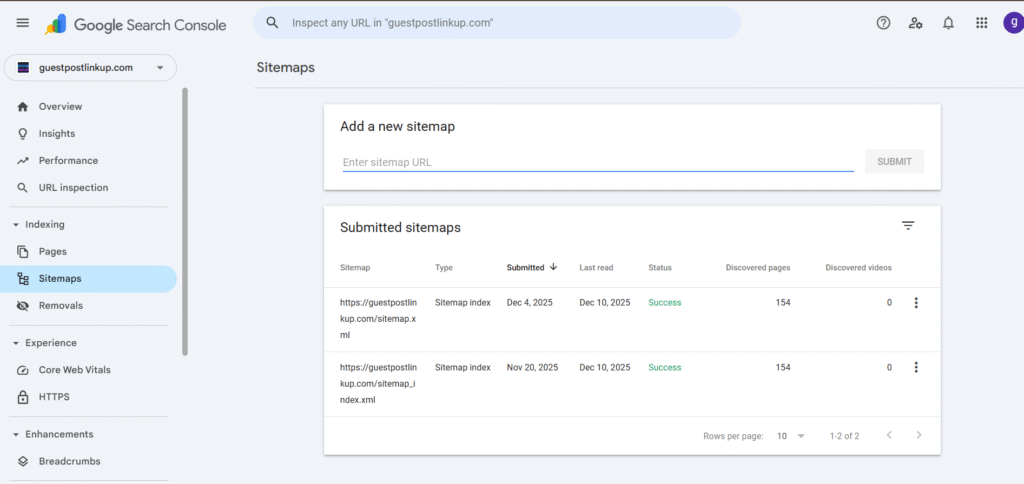
Steps
- Go to Sitemaps in GSC
- Enter sitemap.xml
- Click Submit
Example:
If you run a blog, and you publish 10 new blogs, the sitemap helps Google discover them faster.
This is an important part of every GSC step-by-step tutorial, and it ensures indexing happens smoothly.A Google Search Console guide helps you understand how Google views your site and how to improve its visibility in search results.
Tips for beginners : Use SEO yoast plugin for readymade sitemap.
The Dashboard Explained — The Real “Google Search Console Guide” for Beginners
Many beginners feel lost when they open the dashboard. Don’t worry. This Google Search Console guide breaks down every element in the simplest possible way.
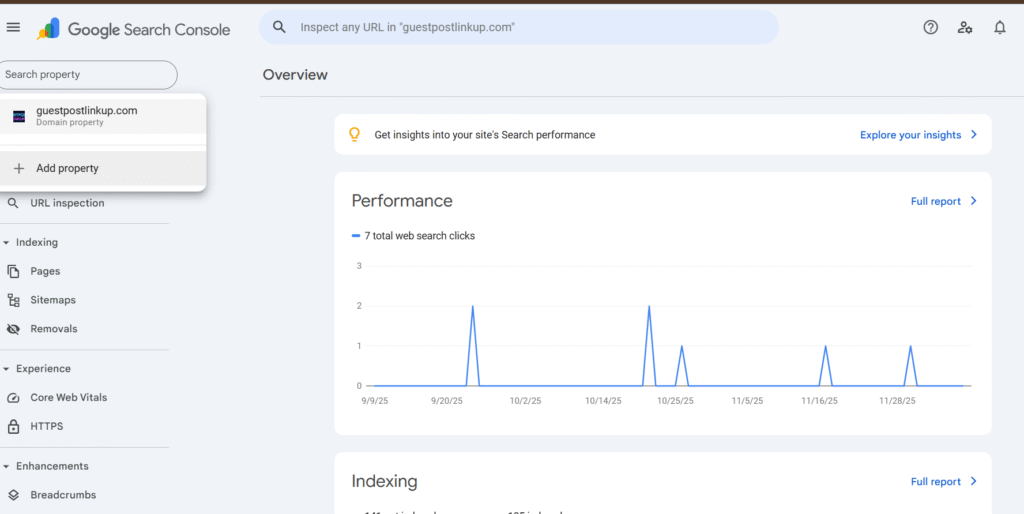
Google Search Console: Overview Section
The Overview section gives you a quick snapshot of:
- Performance — clicks, impressions, average CTR, and ranking positions.(Graphic Form)
- Indexing Status — how many pages are indexed, how many are blocked, and whether Google is having trouble accessing any content.(Graphic Form)
- Experience & Enhancements — Core Web Vitals, mobile usability, and any structured data Google has detected on your site.
It’s the place you check when you want a “quick pulse” of your website without diving deep into reports. Perfect for spotting early signs of issues or celebrating little wins — like a sudden jump in clicks.
Performance Section
This is the heart of the entire tool.
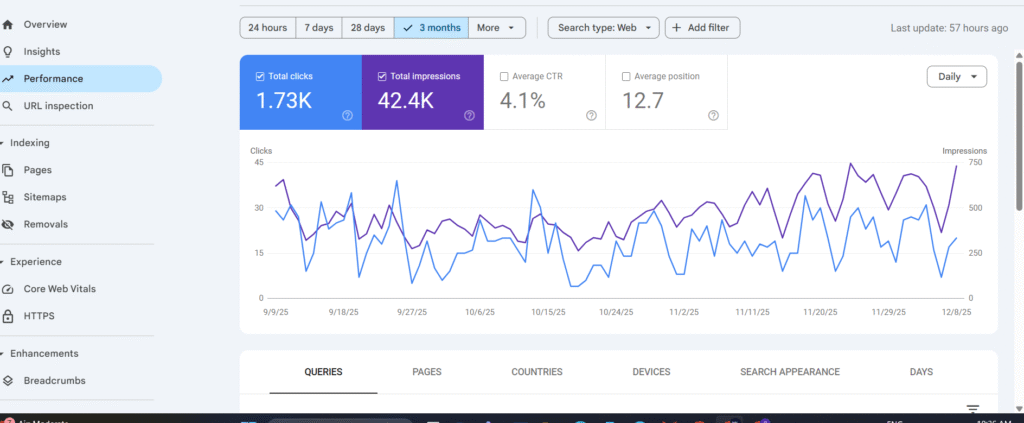
Here you can see:
- Total Clicks:
The number of times users actually clicked your website link on Google. - Total Impressions:
The number of times your website appeared in Google search results, even if no one clicked it. - Average Position:
The average ranking of your page on Google for all the keywords it shows up for. - CTR (Click-Through Rate):
The percentage of people who clicked your link after seeing it in search results.
This entire performance panel helps beginners understand how to use Google Search Console the right way.
SEO Tip : To increase your clicks you can do the experiment or changes in meta title and description of website pages , it really helps me.
Queries Tab (Keyword List)
This is where your visitors come from — the keywords they typed into Google.
Example:
If your blog is about fitness and you see queries like:
- “weight loss at home”
- “gym diet plan”
- “how to lose fat fast”
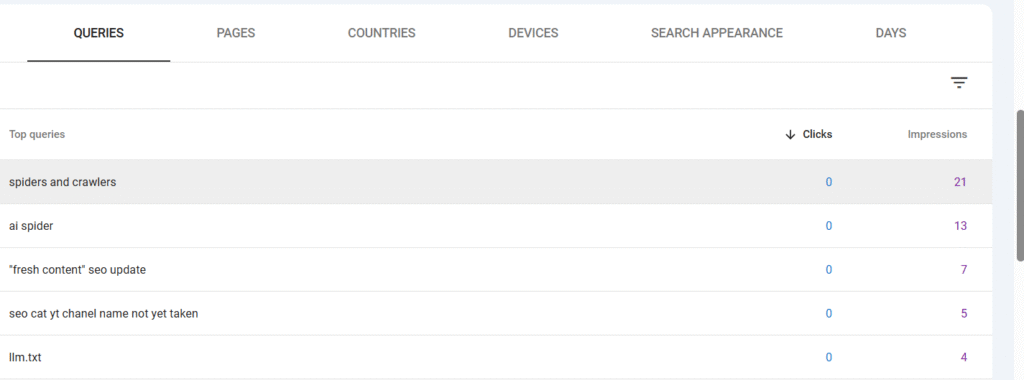
For example: if someone searches for the keyword “gym diet plan” and you’ve used that keyword in your page or blog, Google may show your page to that user. This means that keyword is getting impressions, clicks, and users — in simple words, that keyword is ranking for your website.
Pages Tab
Shows which of your pages rank the best.
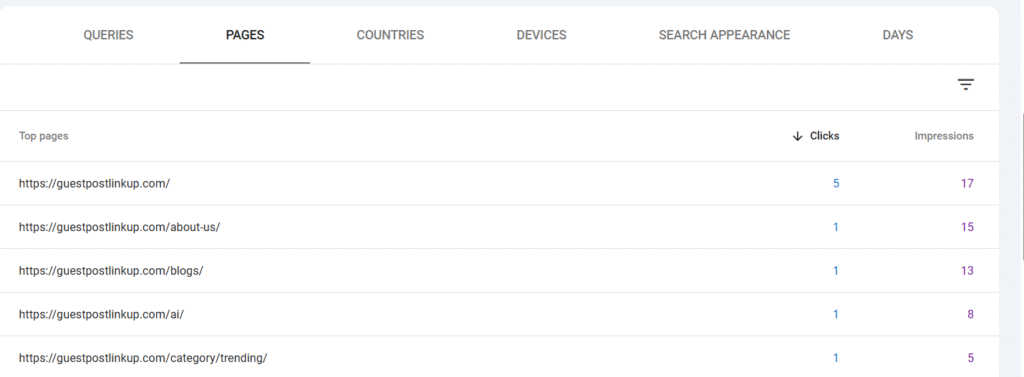
Example:
Maybe your “About Us” page gets only 50 impressions
But your “Best Protein Powder Review” page gets 15,000 impressions.
Here you can view each page’s clicks and impressions separately. By clicking on any page, you can see more details such as which queries it’s ranking for and which countries are giving it impressions or clicks
This tells you what content Google loves.
Countries Tab
Shows where your traffic comes from.
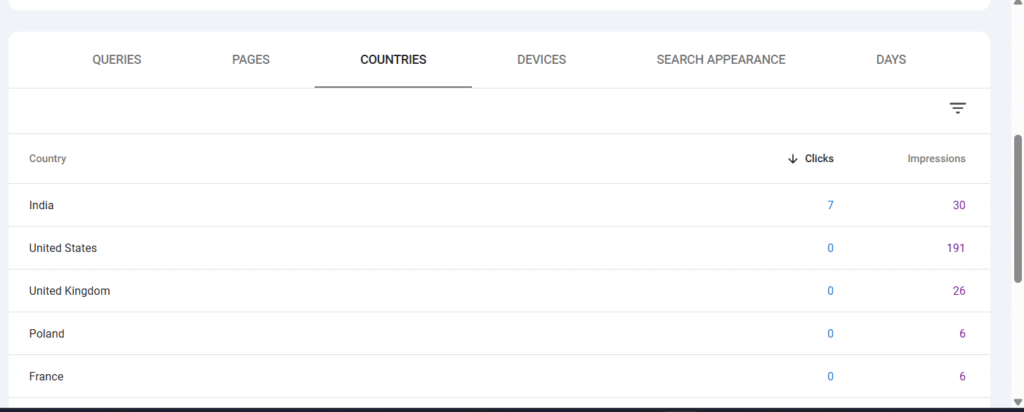
Example:
- India: 55%
- USA: 20%
- UAE: 10%
Very useful if you do international SEO campaigns.You can see the data country wise.
Devices Tab
Shows which devices people use — mobile, tablet, desktop.
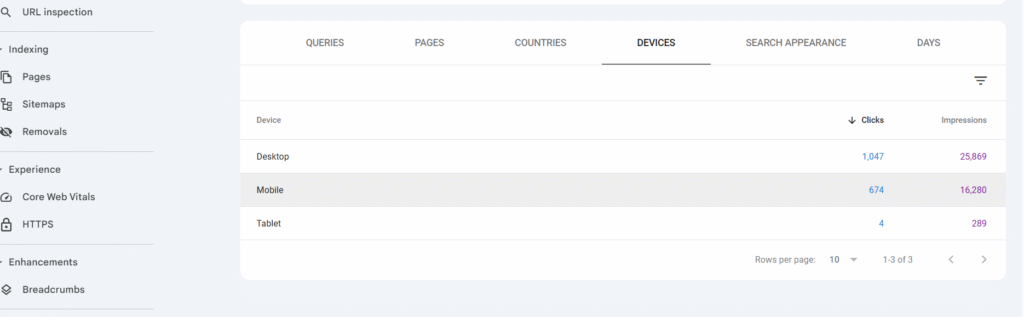
If 85% traffic comes from mobile?
→ Your site must load fast on smartphones.
This part helps beginners truly understand how to use Google Search Console to improve performance.
SEO Tip : A website should load within 3 seconds — it’s an important ranking factor.
FILTERS OF PERFORMANCE SECTION
Here you can view your data using different filters, which makes everything easier to understand. At the top, you’ll find the 24-hour filter, which shows data from the last 24 hours — like how many clicks and impressions you received. You can also check 7 days, 28 days, and 3 months of data using these filters.
If you click “More”, you’ll see additional date options, including Custom, where you can select any date range you want.
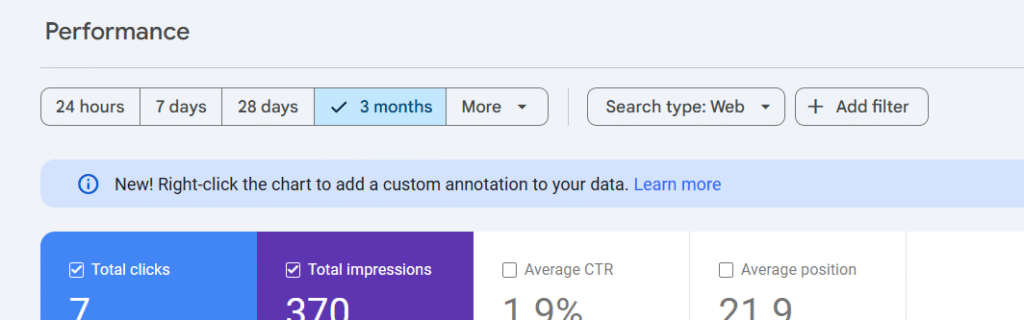
The Compare filter is one of the most helpful features. Here you can compare your data weekly, monthly, yearly, and much more perfect for tracking your progress over time.
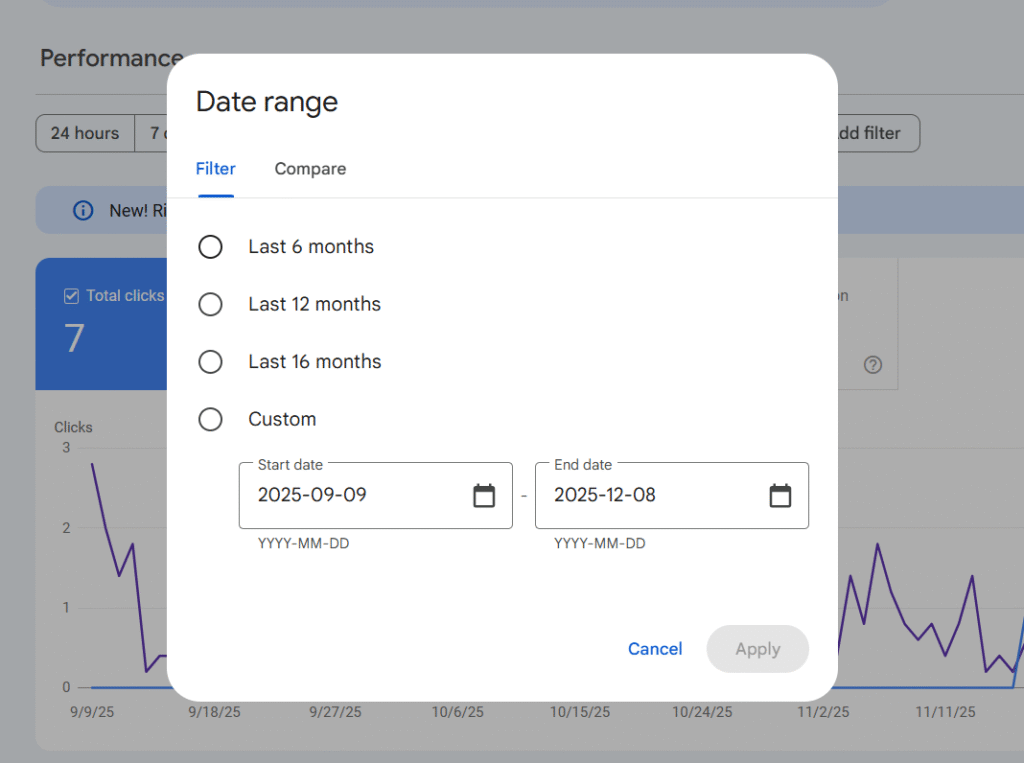
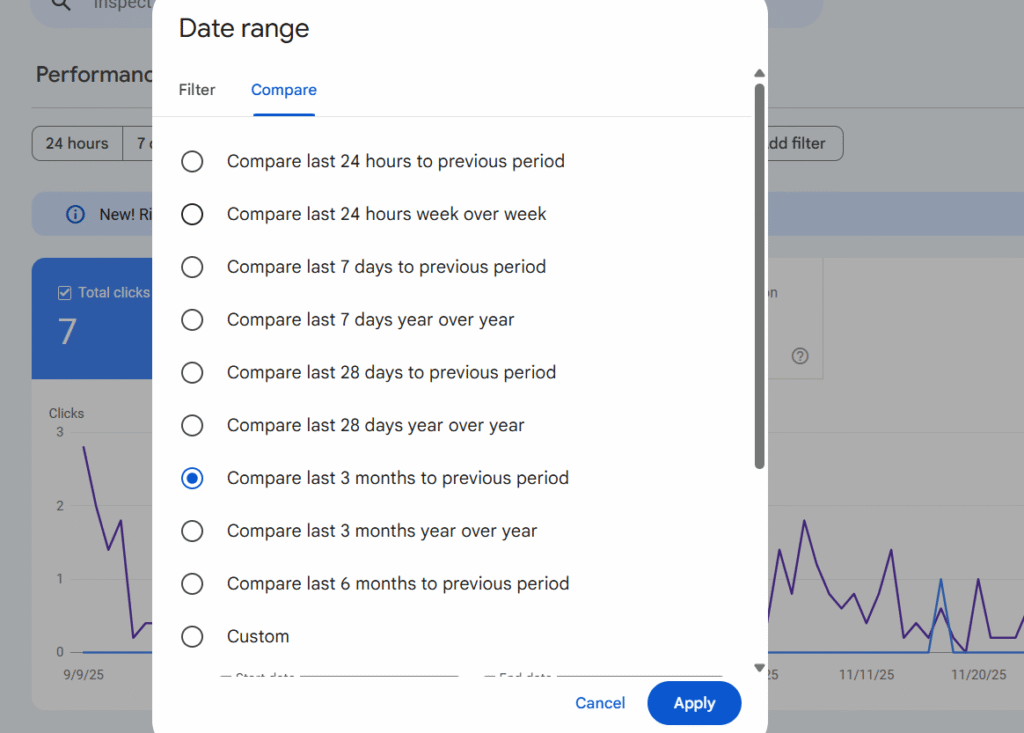
There’s also an Add Filter option. You can enter the link of any specific page and instantly see the results for that page alone.
URL Inspection — The “Scan Tool”
Take any URL → Paste it → Google shows:
- Whether the page is indexed
- Why it’s not indexed
- Any errors
- Mobile issues
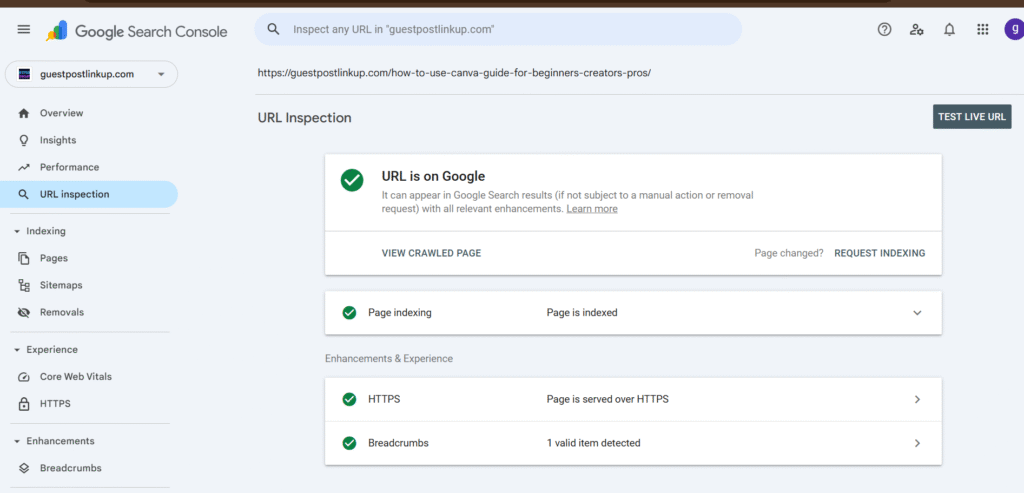
Requesting indexing simply means asking Google’s crawlers to re-check your webpage and re-index it. You can do this through the Request Indexing button inside the URL Inspection tool. The ability to request indexing is an essential part of every good GSC tutorial because it helps you quickly fix issues and push updates faster.
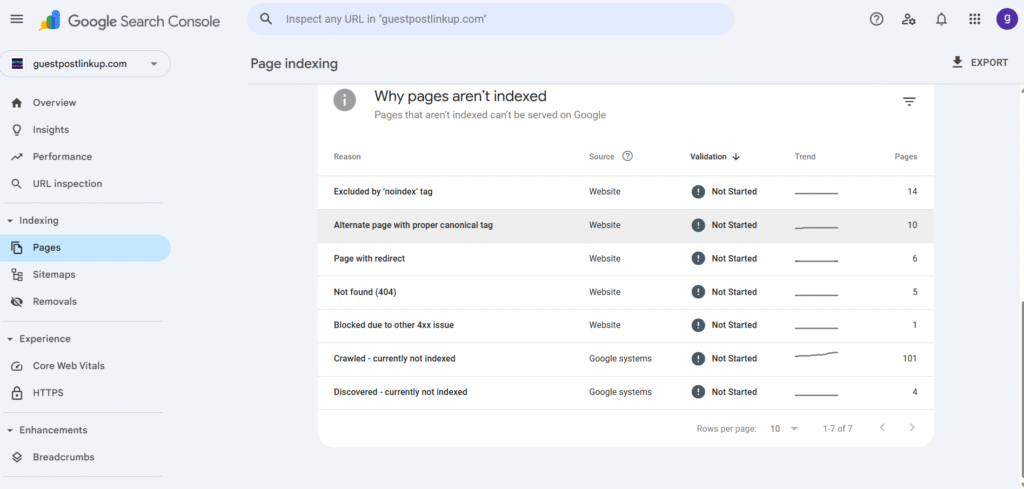
Eg: If Google says “Page is not indexed because it’s a duplicate,”
it means Google found another page with similar or identical content. In this case, you may need to update or rewrite the content and then request indexing again.
Technical SEO Tips:
From this tab, you can see several important details like:
- when your page was last crawled,
- breadcrumb status,
- HTTPS status,
- mobile usability, and more.
You can also use the Test Live URL feature to get a fresh, detailed report on the real-time status of your page.
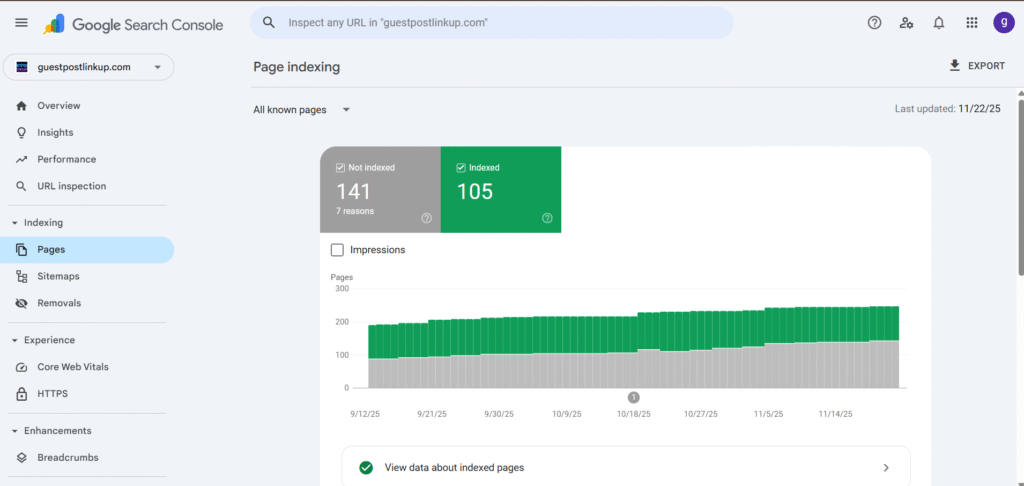
INDEXING
Here you can see the list of all indexed and non-indexed pages on your website, along with all the indexing-related errors that need your attention.
SITEMAP
This section helps you submit your website’s sitemap for indexing. You just need to add sitemap.xml to your website’s URL and submit it. If you see “Success,” your sitemap is submitted correctly. But if you see “Couldn’t fetch” or “404 error,” it means there is an issue with your sitemap that needs to be fixed.
SEO Tip: Submitting your sitemap once or twice a week — or at least once a month — can help improve your site’s crawlability.
Removal
This section is used to temporarily remove 404 error pages from Google’s search results. For example, if you delete any blog or page from your site, it will create a 404 error, which can cause issues in your SEO. To remove that page from Google, simply copy the URL, paste it into the Removal tool, and request removal.
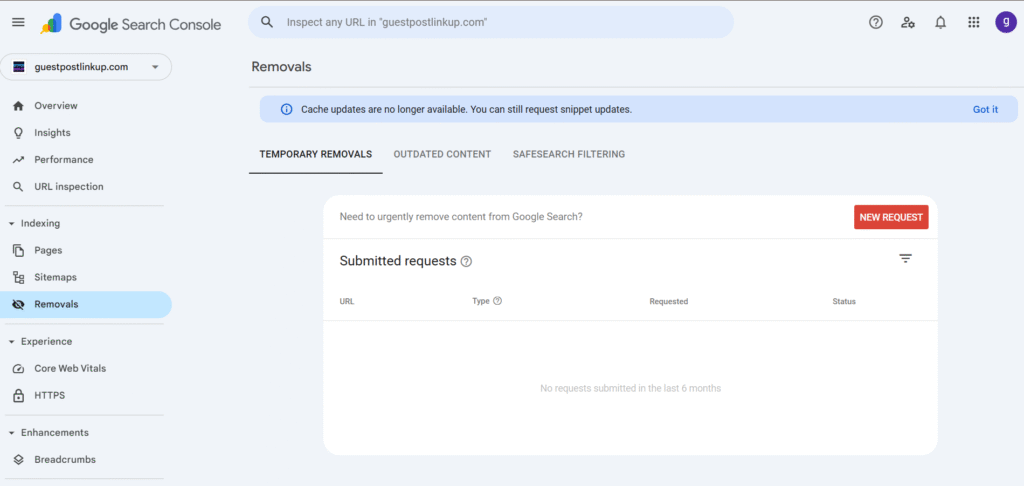
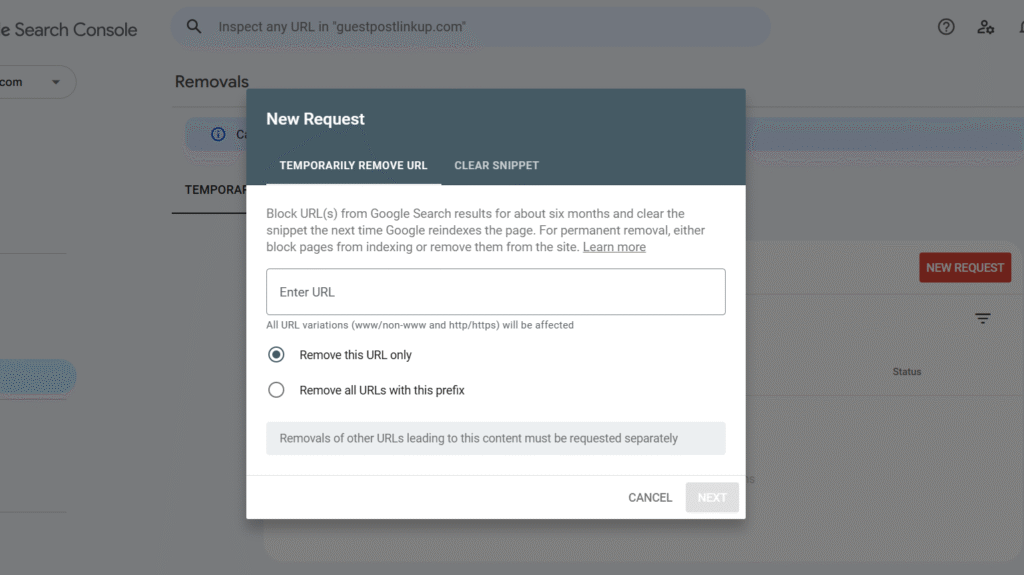
The removed URL stays hidden from Google search results for 6 months.
Important Note: Using the Removal tool removes the URL from Google, not from your website.
Core Web Vitals
This section shows how fast, stable, and user-friendly your website feels to real visitors. Google tracks three major metrics here:
- LCP (Largest Contentful Paint): how fast your main content loads
- FID/INP: how quickly your page responds when a user taps or clicks
- CLS (Cumulative Layout Shift): how stable the layout is while loading
If any of these turn “Needs Improvement” or “Poor,” Google will highlight the affected URLs. Fixing Core Web Vitals—like reducing image size, improving server speed, or cleaning up heavy scripts—helps your pages rank better and gives users a smoother experience.
This shows us which urls are performing good , need improvement or poor in mobile and desktop version
HTTPS (Security Status)
This section shows whether your website is fully secure with HTTPS. If any page is not served over HTTPS, Google will flag it here. A secure site builds trust, loads faster, and performs better in search.
If you see warnings like “HTTPS not detected” or “Mixed content issues,” it means some parts of your page (like images, scripts, or links) are still using HTTP. Fixing these ensures your entire site stays safe, stable, and SEO-friendly.
Links / BACKLINKS
Index Backlinks:
Here you can see all the backlinks indexed by Google for your website. Just follow these steps:
- Go to Top Linking Sites
- Click “More”
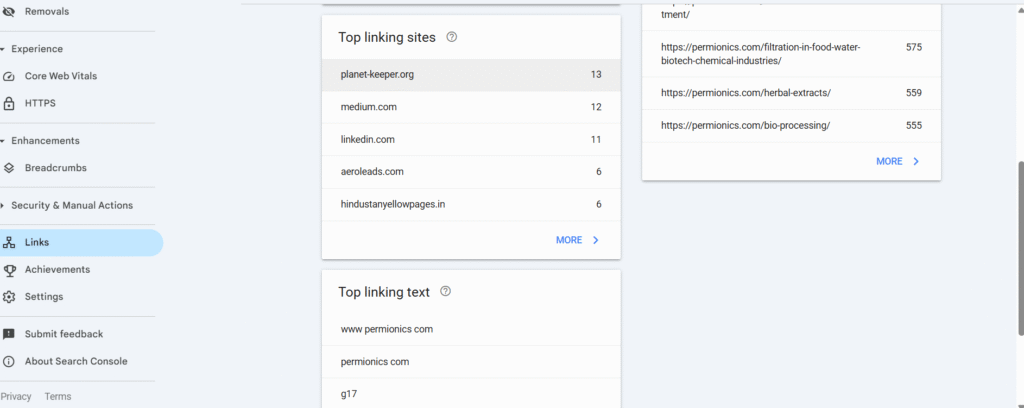
This will show you all the indexed backlinks, including:
- The websites where you have created backlinks
- The number of pages indexed from each site
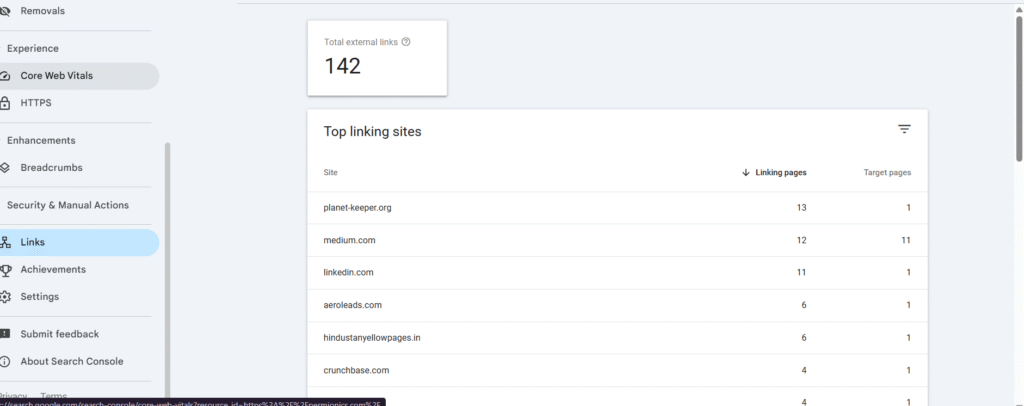
For more details, click on any site. You will then see every backlink pointing to your website. You can also check the backlink by simply clicking the arrow .
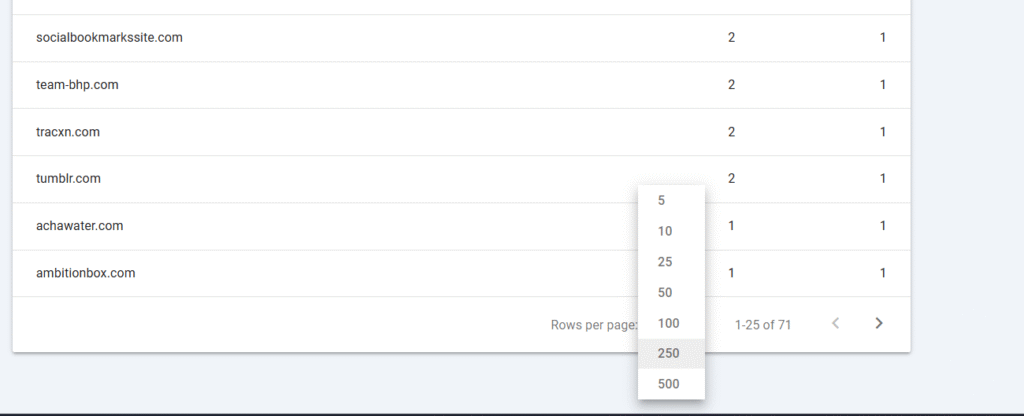
At the bottom, you can use filters to see all your backlinks more clearly.
You can also check the anchor text you used for those backlinks which are ranking.
Settings option of GSC
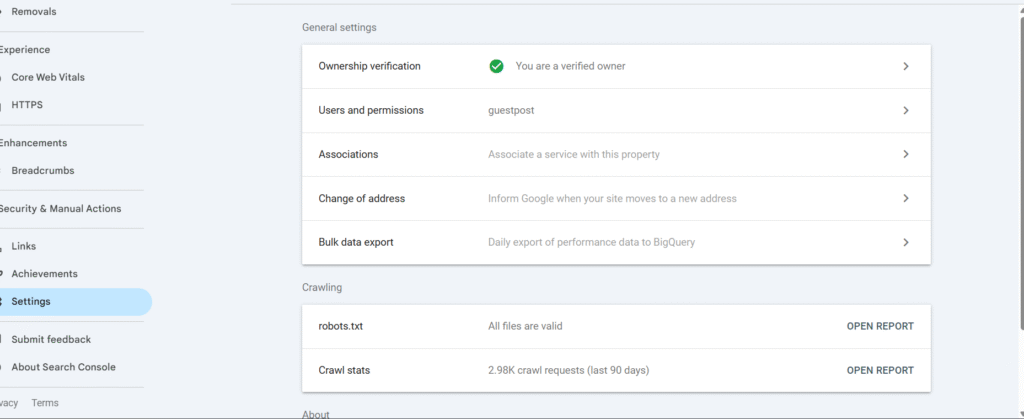
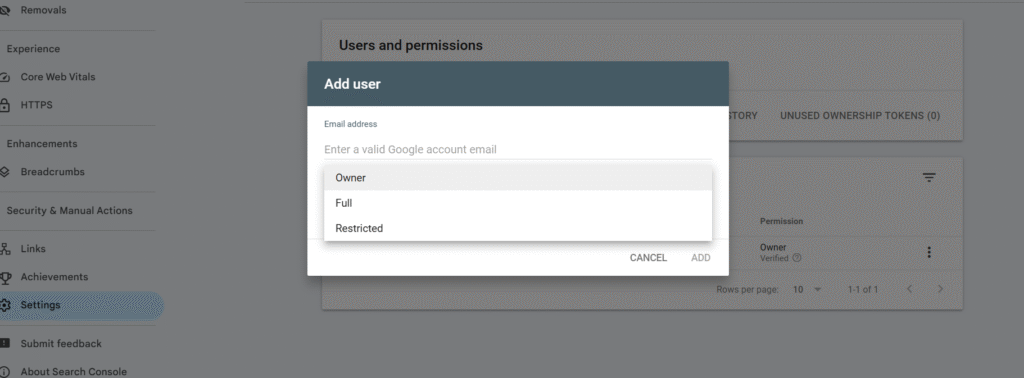
Sharing Access (Step-by-Step)
- Go to Settings
- Click Users and Permissions
- Click Add User
- Enter email
- Choose “Full” or “Restricted”
Example:
If you work with a freelancer or agency, share restricted access.
This is an underrated part of how to use Google Search Console that beginners miss.
Robots.txt File
Here you can check the status of your robots.txt file by clicking “Open Report.”
The robots.txt file is used to tell Google’s crawlers which pages they are allowed to crawl and which pages they should avoid. It helps control your website’s crawl behavior and protect sensitive or unwanted pages from being crawled.
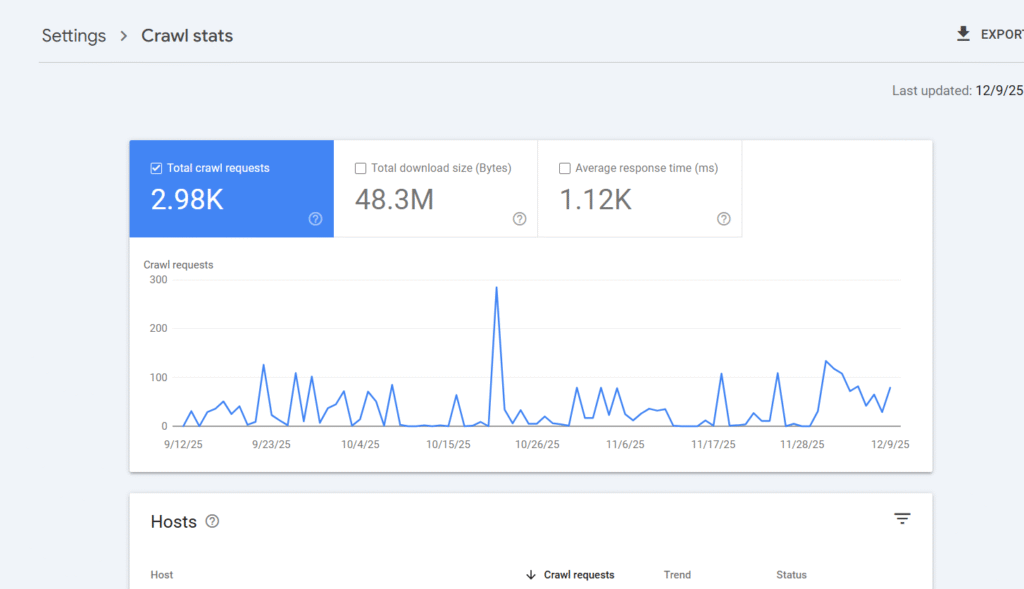
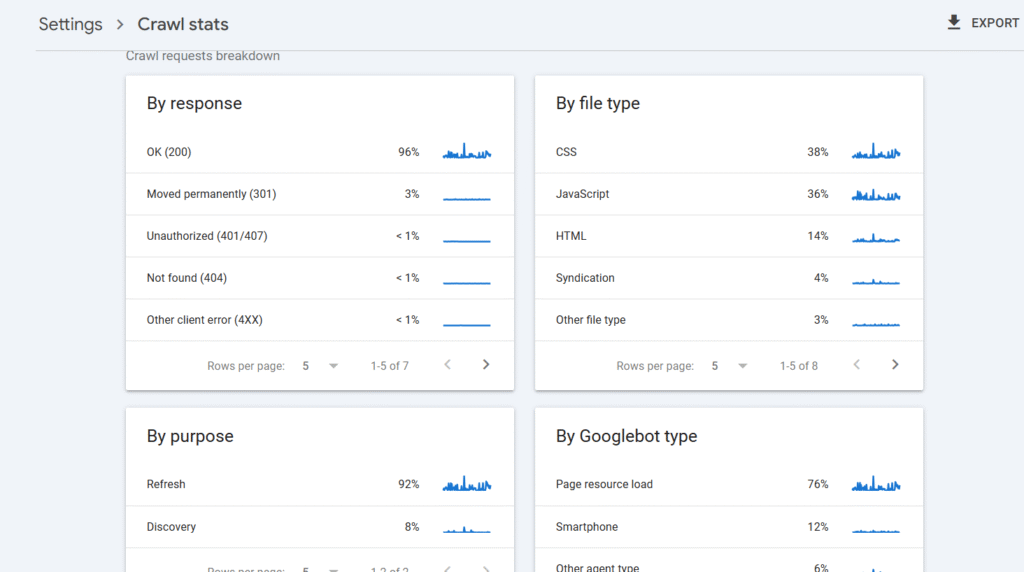
Crawl Stats
This section shows how many crawl requests Google has made on your website. It tells you:
- how often Google crawls your pages,
- how your server responds,
- and whether your website is easy for Google to access.
It’s a great way to understand how healthy your website’s crawling activity is.
Simple SEO Hacks You Can Apply Today
These appear naturally throughout the GSC tutorial, but here’s a quick list:
- Update meta titles and description in three months for increasing clicks
- Add internal links to pages that will help in better result or organic traffic.
- Post blogs consistently will help you to rank fast.
- Improve mobile speed , website should load under 3 sec.
- Make sure the ratio of index pages is higher than indexing pages.
- Fix 404s regularly.
THE END
Mastering Google Search Console doesn’t have to feel complicated. With the right GSC tutorial, even a complete beginner can set up their account, understand the dashboard, and start tracking real SEO growth. This Google Search Console guide walked you through every major tool — from performance insights to indexing, sitemaps, backlinks, and Core Web Vitals — so you always know what Google sees on your site.
And if you follow this GSC step-by-step tutorial consistently, you’ll not only fix issues faster but also improve your rankings, boost clicks, and understand exactly how your content performs. If you want to know how to track keywords(queries) on AI (Gemini, ChatGPT, Perplexity ), please comment. I will create a blog on the topic.
If you want more blogs like this, don’t forget to subscribe to my website, guestpostlinkup, it’s free.
.
The blog is very useful,it’s small tips really help ,u have explained it like a pro.
Informative